Documentation DubInstante
DubInstante est un logiciel de doublage vidéo professionnel conçu pour être
puissant, intuitif et visuellement raffiné. Il permet de lire des vidéos, d'écrire des textes de
doublage sur une bande rythmo, d'enregistrer des pistes vocales synchronisées et d'exporter le
résultat final.
🚀 Guide de démarrage rapide
Doublez votre première vidéo en 4 étapes simples.
1
Importez votre vidéo
Cliquez sur "Ouvrir Vidéo". Les
formats MP4 et autres standards sont supportés. Les fichiers volumineux (50 Go+) sont
chargés sans latence.
2
Préparez la bande rythmo
Saisissez votre texte directement
sur la bande rythmo. Il se synchronise automatiquement avec l'image. Cliquez n'importe où
sur la bande pour naviguer instantanément.
3
Enregistrez les voix
Sélectionnez votre micro, ajustez
le gain, et lancez l'enregistrement. Jusqu'à 2 pistes peuvent être capturées simultanément
avec des périphériques distincts.
4
Exportez votre projet
L'export fusionne la vidéo
originale et vos pistes audio via FFmpeg, tout en préservant la qualité source. Sauvegardez
au format .dbi pour retravailler plus tard.
📦 Installation
Suivez ces instructions pour installer DubInstante sur votre système.
Windows
Linux
FFMPEG est nécessaire, installation ci-dessous
▼
Téléchargez l'installeur automatique : FFmpeg Windows .exe
Lancez le fichier téléchargé et suivez les instructions pour installer FFmpeg.
Vérifiez l'installation : ouvrez un terminal (cmd) et tapez
ffmpeg -version. Si la version s'affiche, c'est bon !
1. Installer DUBInstante sur Windows
Téléchargez le fichier DUBSync_1.1.0_Windows.zip depuis la page
d'accueil ou la section "Files".
Décompressez l'archive ZIP où vous le souhaitez.
Ouvrez le dossier extrait et lancez DUBSync.exe.Aucune
installation supplémentaire n'est requise, le logiciel est autonome.
FFMPEG est nécessaire, installation ci-dessous
▼
Choisissez votre distribution
:
Debian / Ubuntu
Autre distribution
Ouvrez un terminal et tapez :
sudo apt update
sudo apt install ffmpeg
Vérifiez l'installation avec ffmpeg -version.
1. Installer DUBInstante sur Linux
Téléchargez le fichier DUBSync-0.1-x86_64.AppImage depuis la page
d'accueil ou la section "Files".
Ouvrez un terminal dans le dossier où se trouve le fichier téléchargé.
Rendez le fichier exécutable
:chmod +x DUBSync-0.1-x86_64.AppImage
Lancez le logiciel :./DUBSync-0.1-x86_64.AppImage
2. Bienvenue sur DUBInstante
Comprendre l'interface du logiciel
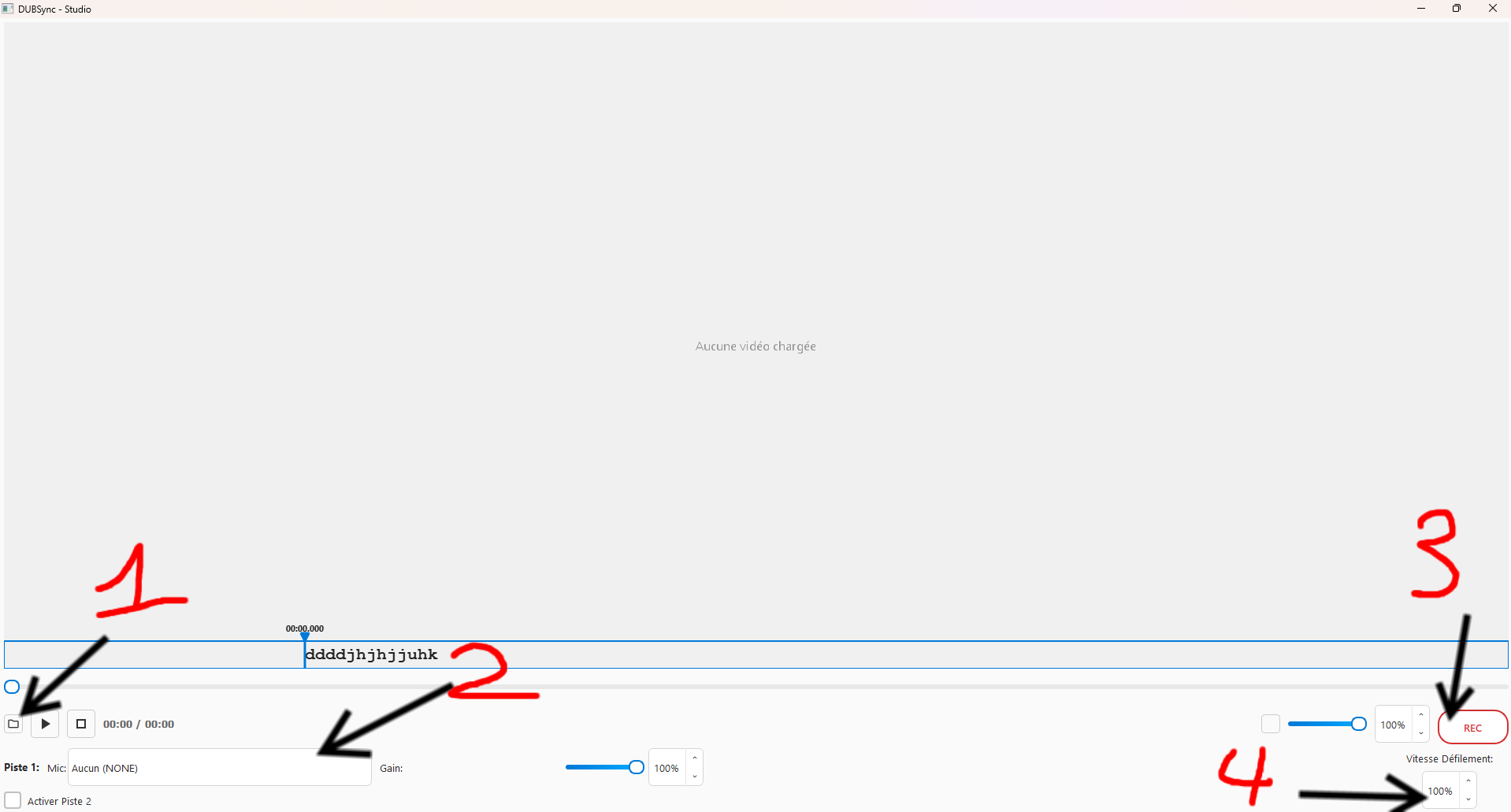
1. Ce bouton permet de sélectionner la vidéo que vous souhaitez doubler au format MP4.
2. Ce menu déroulant permet de choisir le micro à utiliser.
3. Ce bouton permet de lancer l'enregistrement audio pour le doublage.
4. Cette option permet d'adapter manuellement la vitesse de défilement de la bande
rythmo.
3. Écrire sur la Bande Rythmo
Synchroniser le texte avec l'image.
1. Il est vivement conseillé de charger la vidéo avant d'éditer la bande rythmo afin d'en
charger la durée.
2. Vous pouvez naviguer librement sur la bande rythmo, soit en défilant la vidéo, soit en
cliquant à l'endroit voulu sur celle-ci.
3. Commencez à taper le dialogue, le texte défile automatiquement sur la bande. La bande
se déplace automatiquement si la vidéo est en lecture.
4. Enregistrement Vocal
1. Sélectionnez votre microphone dans la liste déroulante "Piste 1".
2. Ajustez le gain pour que la barre de volume corresponde à votre niveau sonore final.
3. Lancez l'enregistrement, votre voix sera intégrée à la vidéo finale.
✨ Fonctionnalités Principales
🎬 Lecture Vidéo
Lecteur Haute Performance: Rendu accéléré par OpenGL via Qt 6 Multimedia
Navigation Précise: Défilement image par image avec timeline visuelleSynchronisation Temps Réel: Audio et vidéo parfaitement synchronisés avec
les bandes rythmoContrôle de Vitesse: Vitesse de lecture ajustable (1% à 400%) pour la
pratique et la révision
📝 Système de Bande Rythmo
Double Bande Rythmo: Deux bandes de texte défilant indépendantes pour les
workflows complexesÉdition Interactive: Saisie de texte directe sur la bande rythmo avec
aperçu en temps réelStyles Visuels: Plusieurs modes d'affichage (Classique, Gradient moderne,
Minimaliste, Contouré)Synchronisation Temporelle: Défilement automatique en synchronisation avec
la vidéoNavigation par Clic: Cliquez n'importe où sur la bande rythmo pour sauter à
cet instant
🎙️ Enregistrement Multipiste
Support Dual Track: Enregistrement simultané de deux pistes vocales
séparéesSélection de Périphérique: Sélection de microphone indépendante pour chaque
pisteMonitoring Temps Réel: Contrôle de gain en direct avec sliders visuelsContrôle de Volume: Ajustement du volume par piste (0-100%)Enregistrement Professionnel: Capture WAV haute qualité avec gain
configurable
🎨 Interface Moderne
Interface Raffinée, Sliders Réactifs, Spinboxes Compactes, Layout Intuitif.
📤 Export & Intégration
Intégration FFmpeg pour fusion vidéo/audio professionnelle.
Export Multipiste combinant vidéo originale et pistes vocales.
🎹 Raccourcis Clavier & Utilisation
Espace
Lecture / Pause
Échap
Insère un espace sur la bande & lecture
← →
Navigation image par image
Workflow d'Enregistrement
Charger Vidéo: Cliquez sur "Ouvrir Vidéo".Configurer les Pistes: Sélectionnez le microphone et ajustez le gain.Éditer le Rythmo: Tapez directement sur la bande. Le texte défile
automatiquement.Enregistrer: Cliquez sur REC, parlez en rythme, recliquez pour arrêter.
Exporter: Exportez la vidéo finale.
🏗️ Architecture & Prérequis
Stack Technique: Qt 6.5+, FFmpeg, OpenGL.
Codecs pour MP4 (Linux) :
sudo apt install gstreamer1.0-libav gstreamer1.0-plugins-good gstreamer1.0-plugins-bad gstreamer1.0-plugins-ugly
DUBInstante Documentation
DUBInstante is a professional video dubbing software designed to be powerful,
intuitive, and visually refined. It allows you to play videos, write dubbing text on a rythmo
band, record synchronized voice tracks, and export the final result.
📚 Tutorials
Learn how to master DUBInstante step by step.
Windows
Linux
FFMPEG is required, installation below
▼
Download the automatic installer: FFmpeg Windows .exe
Run the downloaded file and follow the instructions to install FFmpeg.
Verify installation: open a terminal (cmd) and type
ffmpeg -version. If the version displays, you're good to go!
Install DUBInstante on Windows
Download the DUBSync_1.1.0_Windows.zip file from the homepage or
"Files" section.
Unzip the archive wherever you want.
Open the extracted folder and launch DUBSync.exe.No further
installation is required, the software is standalone.
FFMPEG is required, installation below
▼
Choose your distribution:
Debian / Ubuntu
Other distribution
Open a terminal and type:
sudo apt update
sudo apt install ffmpeg
Verify installation with ffmpeg -version.
Install DUBInstante on Linux
Download the DUBSync-0.1-x86_64.AppImage file from the homepage or
"Files" section.
Open a terminal in the folder where the downloaded file is located.
Make the file executable:chmod +x DUBSync-0.1-x86_64.AppImage
Launch the software:./DUBSync-0.1-x86_64.AppImage
2. Welcome to DUBInstante
Understanding the software interface
1. This button allows you to select the video you want to dub in MP4 format.
2. This dropdown menu allows you to choose the microphone to use.
3. This button starts audio recording for dubbing.
4. This option lets you manually adjust the scrolling speed of the rythmo band.
3. Writing on the Rythmo Band
Synchronize text with the image.
1. It is strongly recommended to load the video before editing the rythmo band to ensure
the correct duration is loaded.
2. You can freely navigate on the rythmo band, either by scrubbing the video or by
clicking at the desired location on the band.
3. Start typing the dialogue; the text scrolls automatically on the band. The band moves
automatically if the video is playing.
4. Voice Recording
1. Select your microphone from the "Track 1" dropdown list.
2. Adjust the gain so that the volume bar matches your final audio level.
3. Start recording; your voice will be included in the final video.
✨ Key Features
🎬 Video Playback
High-Performance Player: Hardware-accelerated OpenGL rendering via Qt 6
MultimediaPrecise Navigation: Frame-by-frame scrubbing with visual timelineReal-Time Synchronization: Audio and video perfectly synced with rythmo
bandsSpeed Control: Adjustable playback speed (1% to 400%) for practice and
review
📝 Rythmo Band System
Dual Rythmo Bands: Two independent scrolling text bands for complex dubbing
workflowsInteractive Editing: Direct text input on the rythmo band with real-time
previewVisual Styles: Multiple display modes (Classic box, Modern gradient,
Minimal text-only, Outlined)Time-Synchronized: Automatically scrolls in sync with video playbackClick-to-Navigate: Click anywhere on the rythmo to jump to that timestamp
🎙️ Multi-Track Recording
Dual Track Support: Record two separate voice tracks simultaneouslyDevice Selection: Independent microphone selection for each trackReal-Time Monitoring: Live gain control with visual feedback slidersVolume Control: Per-track volume adjustment (0-100%)Professional Recording: High-quality WAV capture with configurable gain
🎨 Modern UI Design
Professional layouts, responsive sliders, and intuitive controls.
📤 Export & Integration
FFmpeg integration for merging video/audio.
Multi-track export preserving original quality.
🎹 Keyboard Shortcuts & Usage
Space
Play / Pause
Esc
Insert space on rythmo & start playback
← →
Frame-by-frame navigation
Workflow
Load Video: Click "Ouvrir Vidéo".Configure Tracks: Select microphone and adjust gain.Edit Rythmo: Type directly on the band. Text scrolls automatically.Record: Click REC, speak in sync, click REC to stop.Export: Render the final video.
🏗️ Architecture & Requirements
Tech Stack: Qt 6.5+, FFmpeg, OpenGL.
For dependencies regarding Gstreamer on Linux (Codecs for MP4):
sudo apt install gstreamer1.0-libav gstreamer1.0-plugins-good gstreamer1.0-plugins-bad gstreamer1.0-plugins-ugly
 Dub
Dub